Perfex - Powerful Open Source CRM
Introduction
Documentation Info
- Created: 02/27/2016
- Last Updated: 21/10/2016
- Created by: MSTdev
- Version 1.2.7
- email: info@perfexcrm.com
Knowledge Base & Support
Website: www.perfexcrm.com
System Requirements
- PHP 5.4+
- MYSQL 5.1+
- mod_rewrite Apache
- Mcrypt Extension
- MBString Extension
- GD Extension
- MYSQLi Extension
- PDO Extension
- OpenSSL Extension
- IMAP Extension
- Zip Extension
- CURL Extension
In most hosting accounts these extensions are enabled by default. But you should consult with your hosting provider.
Configure database connection
You need to have previously setup database from the cPanel.
Here is a good tutorial how to setup MySQL database in cPanel if you are not familiar with this.
- Login to cPanel by accessing www.yourdomain.com/cpanel and navigate go MySQL Databases.
- Create database.
- Create user and setup your password.
- Add the user to database by selecting the database and the username.
Make sure you have checked All privileges when adding the user to database.
Upload Files & Install
Upload the files to your hosting folder and navigate to the location where you will install Perfex CRM http://www.domain.com/crm/install
You will need to pass the requirements to install Perfex CRM.
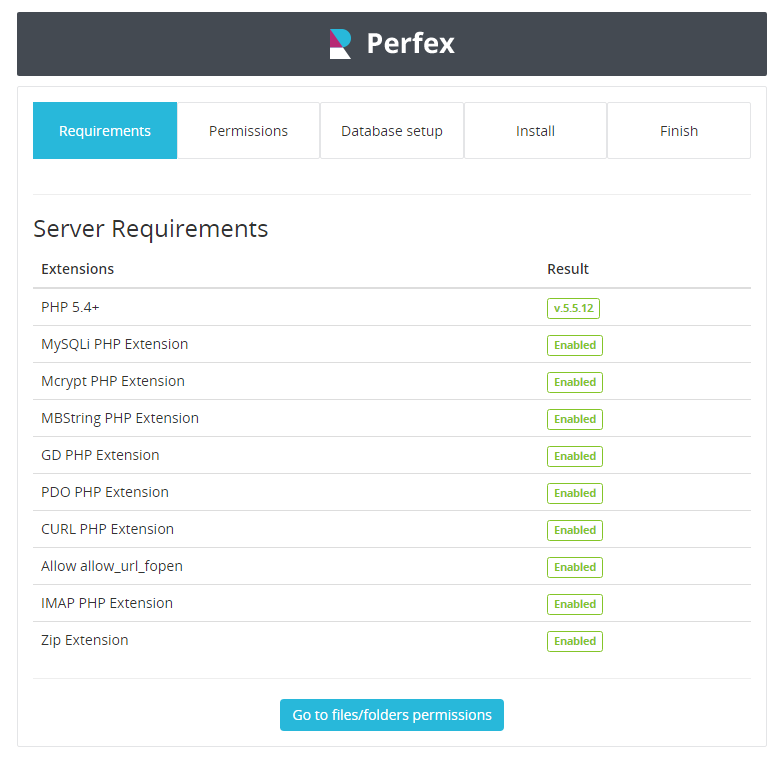
Click Go to files/folders permissions to validate the permissions for files and folders. In case some of them are filled with red color make sure that they are with permission 755.
After you validate the files/folders permission click on Setup Database to validate database credentials.
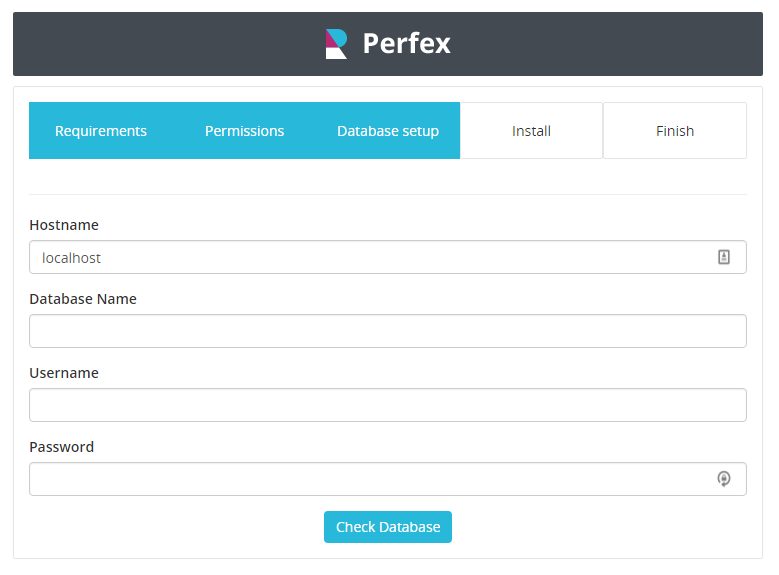
If any erros found while connecting you will be notified otherwise you should see the credentials screen
Configure credentials and options
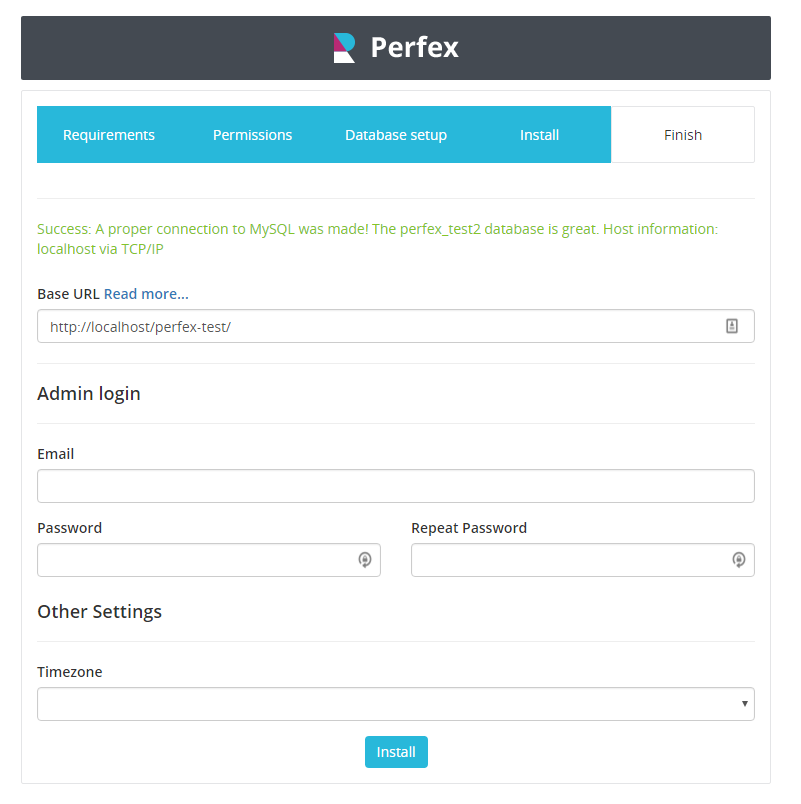
- Base URL - Read More
- Email - Admin Login
- Password
- Set system timezone
If you need help installing dont hesitate to open support ticket
Troubleshooting
Local Server Installation
WAMP
Even if you are trying to install Perfex on WAMP you must meet all the requirements.
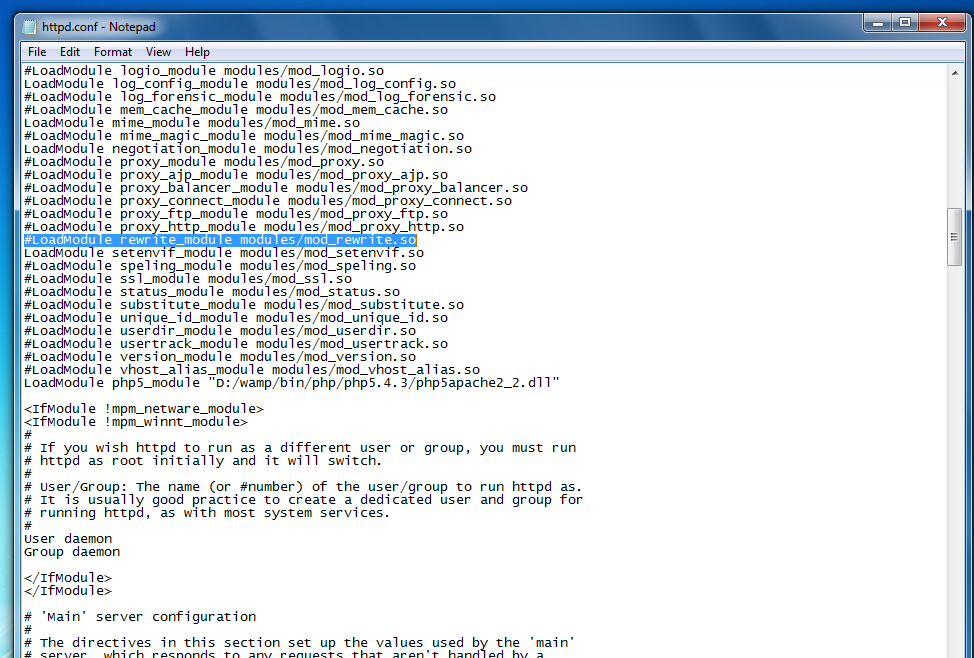
WAMP by default comes with mod_rewrite disabled.
To Enable .htaccess in WAMP Server use the following steps
STEP 1: click on Wampserver and select
apache->httpd.conf
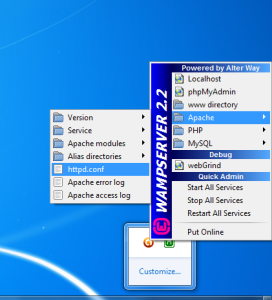
STEP 2: Find and replace the following
text
Find #LoadModule rewrite_module
modules/mod_rewrite.so
Replace
LoadModule
rewrite_module modules/mod_rewrite.so
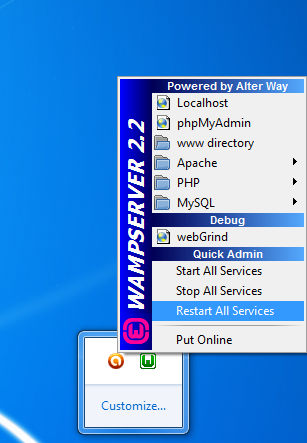
STEP 3: Restart Wamp Server
XAMP
Perfex CRM is not using any online resources except the business news which is located on the top header menu on the right side, but you can install it on XAMPP server without any problems. Everything will work good except if no internet connection you wont be able to send emails.
Few changes we need to do in XAMPP default installation.
1. Change the .htaccess
RewriteRule ^(.*)$ index.php?/$1 [L,QSA]to
RewriteRule ^(.*)$ /yourfolder/index.php?/$1 [L,QSA]
2. IMAP extension manually (enable them in php.ini and restart apache).
Try to install.
Setup
Cron Job
You will need to setup the cron job controller for Perfex
Cron job will be used for sending survey emails, auto update invoice statuse eq. if the invoice is overdue etc.
How to setup Cron Job?
Login to your cPanel and navigate to Cron jobs
Add the following settings :
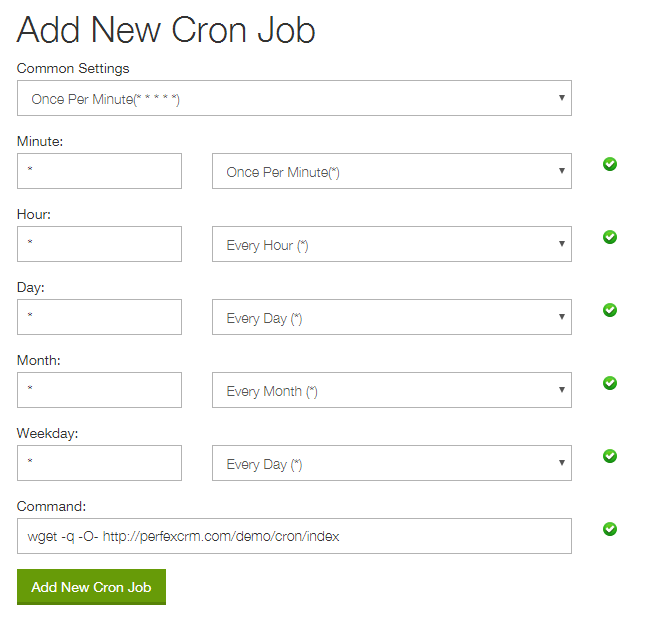
wget -q -O- http://perfexcrm.com/demo/cron/index
Change the url according to your base url where Perfex CRM is located. You can check your cron url in Setup->Settings->Cron Job
Example if its on root domain you need to type only http://yourdomain.com/cron/index
If its on subfolder /crm you will need to type http://yourdomain.com/crm/cron/index
Do not forget the wget command in front.
Cron is required to be setup for Perfex CRM
Date Format
Setup your desired date format, will be using all over the application. This option is located in Setup->Settings-> Localization
General Email
Navigate to Setup -> Settings -> Email and setup your SMTP email, this will be your base email. You need to setup previously email account from your cPanel account.
Email Templates
Check all the email templates, setup signature also in Setup -> Settings -> Email this signature will be using on all email representing your company
FAQ
404 Not Found After Installation
If you are getting 404 not found after you install Perfex CRM this means that you need to adjust the main .htaccess for Perfex CRM.
First make sure that the .htaccess file exists in the main folder where you installed Perfex CRM. If you are using any OS make sure you have enabled hidden files on your MAC.
Make sure that you have mod_rewrite enabled in your server.
NOTE: Only apply the following suggestions if you are getting 404 error not found, the default Perfex CRM .htaccess file should work good on most servers.
Installation on subfolder.
This .htaccess may apply if you installed Perfex CRM next to WordPress installation and you are auto redirected to WordPress default 404 Page.
RewriteEngine on
RewriteBase /foldername/
RewriteCond $1 !^(index\.php|resources|robots\.txt)
RewriteCond %{REQUEST_FILENAME} !-f
RewriteCond %{REQUEST_FILENAME} !-d
RewriteRule ^(.*)$ index.php?/$1 [L,QSA]
AddDefaultCharset utf-8
Installation on subdomain
RewriteEngine on
RewriteBase /
RewriteCond $1 !^(index\.php|resources|robots\.txt)
RewriteCond %{REQUEST_FILENAME} !-f
RewriteCond %{REQUEST_FILENAME} !-d
RewriteRule ^(.*)$ index.php?/$1 [L,QSA]
AddDefaultCharset utf-8
Getting a error 500 and you are using cPanel
RewriteEngine on
RewriteCond $1 !^(index\.php|resources|robots\.txt)
RewriteCond %{REQUEST_FILENAME} !-f
RewriteCond %{REQUEST_FILENAME} !-d
RewriteRule ^(.*)$ subfolder/index.php?/$1 [L,QSA]
AddDefaultCharset utf-8
1&1 Installation
For 1&1 hosting use the following .htaccessRewriteEngine on
RewriteBase /
RewriteCond $1 !^(index\.php|resources|robots\.txt|static) [NC]
RewriteCond %{REQUEST_FILENAME} !-f
RewriteCond %{REQUEST_FILENAME} !-d
RewriteRule ^(.*)$ index.php/?$1 [L,QSA]
Windows Installation
Check the following article for windows web.config file.NGINX Installation
Check the following article for NGINX config.If you still have problems please open support ticket and we will be glad to assist you as long your server passes the requirements.
Cant login to admin area
Perfex CRM admin area is separated from the customers area. Often happen Perfex CRM buyers to get confused and trying to login as admin in the customers area.
Admins needs to login at yourdomain.com/crm/admin
Customers login at yourdomain.com/crm/clients
Hope this will help you.
How to check what version i'm using?
To check your version navigate to application/config/migration.php and find $config['migration_version'] or go to Setup->Settings->General and to see your installation version (V.X.X.X);
Update
Update Notes:
- Upgrading from V1.0.6 to V1.0.7
- Upgrading from V1.0.7 to V1.0.8
- Upgrading from V1.1.3 to V1.1.4
- Upgrading from v1.2.1 to v1.2.2
- Upgrading from v1.2.2 to v1.2.3
If you have purchased Perfex CRM and new version is available you will need to upgrade your current version. To get all the new features and fixes if any. The upgrade is pretty simple just follow the steps below and you'll have the newest version of Perfex.
Check the changelog on http://www.perfexcrm.com/doc/change-log/ if you are using your own theme for the customers area. To make sure that there is no changes in the original theme. If any changes there will be mentioned in the first list item from the changelog.
Always backup your files and database before making an upgrade
The following steps are for the newest downloaded file.
- Extract downloaded file
- In the extracted file, perform steps 3-4
- Delete application/config/database.php (from the newest downloaded files)
- Delete application/config/config.php (from the newest downloaded files)
The following takes place in your existing Perfex CRM installation that you intend to update.
Overwrite the following folders (copy folders from new version update files to your current files):
- /application
- /assets
After overwriting the folders mentioned above go to yourdomain.com/crm/admin to upgrade database.
If you are using your own language make sure to copy all the strings below the last # Version comment from the main application/languages/english/english_lang.php file.
Troubleshooting after upgrade
Login to the admin area and confirm that if everything is good, clear the cache if any changes are made in JS files and CSS. If you are experiencing some datatables warning make sure you cleared the cache. This may happen if there is changes in .js files. If you experience any trouble while updating, open support ticket and we will be happy to assist you.
If you are using your own themes/view files like my_home.php make sure to re-check them in case you are getting blank pages becuase may happen some function changes and an error occur in your view file. Try switching to the original files to check if everything will work.